Voice to Text on iPhone: The Complete Guide (2026)

Vojtech Rinik
Founder of Whisper Memos
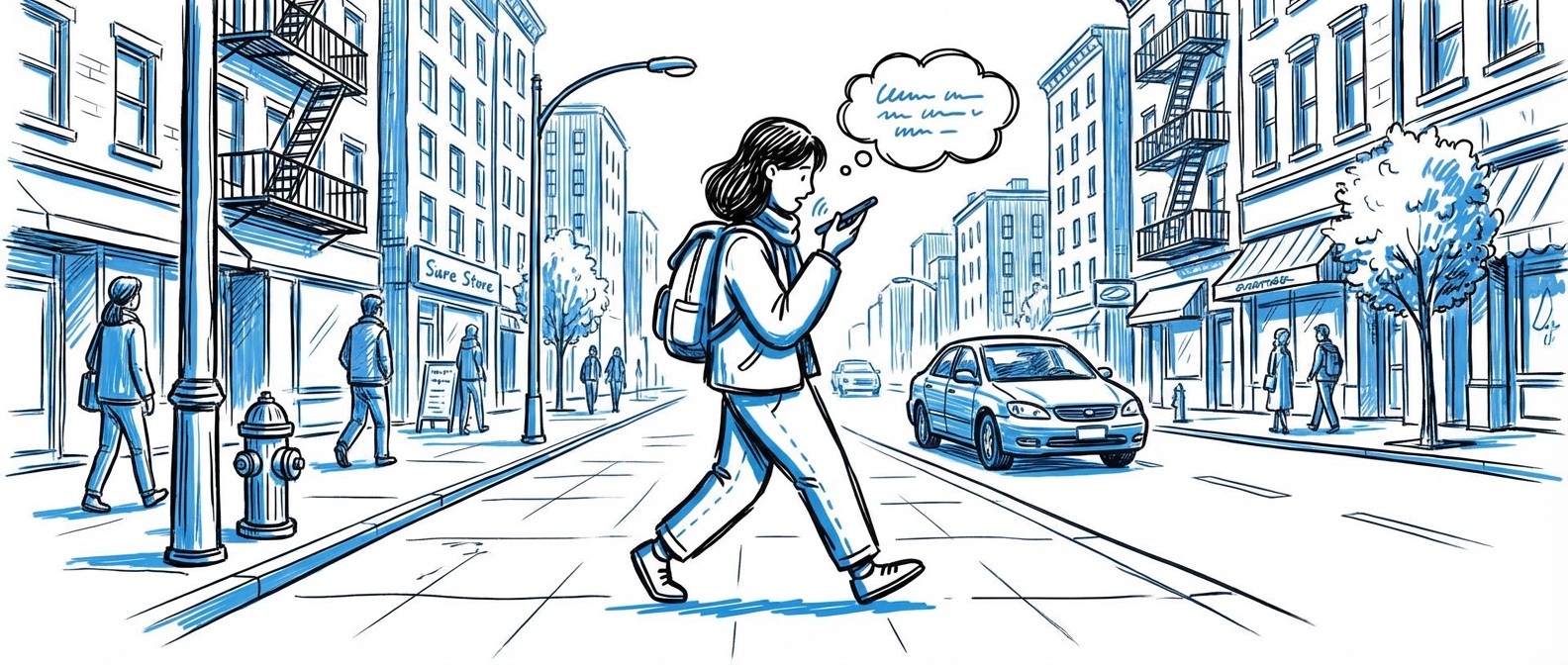
Your iPhone can convert voice to text in several ways-but not all methods are created equal. Built-in options like Dictation and Voice Memos work for quick tasks, but fall short when you need accuracy, formatting, or support for multiple languages.
In this guide, we'll cover what's built into your iPhone, where it falls short, and how Whisper Memos delivers a better voice-to-text experience.
What You Get with Whisper Memos
Before diving into the details, here's what sets Whisper Memos apart from built-in iPhone options:
- Formatted paragraphs. Your transcript is automatically organized into readable paragraphs-not a wall of text.
- Automatic email delivery. Every transcript is sent to your inbox, ready to search, forward, or archive. This also makes the app perfect for reminders-record a thought, and it shows up in your email.
- AI summaries. Long recordings are summarized into key points, so you can quickly scan what matters.
- Better accuracy. Powered by OpenAI Whisper and ElevenLabs Scribe-state-of-the-art speech recognition that handles accents and multiple languages.
Built-in iPhone Options
Your iPhone has two built-in ways to convert voice to text: Dictation and Voice Memos. Both work, but both have significant limitations.
Dictation
Dictation is the microphone button on your keyboard. Tap it, speak, and your words appear as text in real-time.
Limitations:
- Real-time only. You can't record now and transcribe later. Dictation only works while you're actively typing somewhere.
- Short sessions. Dictation stops automatically after 30 seconds of silence and struggles with longer sessions.
- Accuracy issues. Built-in dictation often struggles with accents, proper nouns, and technical vocabulary [1].
- No saved recording. If you need to reference the original audio later, you're out of luck.
Dictation is fine for quick text messages, but not for capturing ideas, meetings, or anything you might want to revisit.
Voice Memos Transcription
With iOS 18, Apple added transcription to the Voice Memos app. Record a memo, and you can view a transcript afterward.
Limitations:
- Language issues. Voice Memos transcribes based on your phone's language setting, not the language you're speaking. If you record in German but your phone is set to English, you get a garbled transcript [2].
- Accuracy problems. Users report the transcription "completely changes words, writes sentences that don't make any sense and creates new words which don't even exist" [3].
- Wall of text. Transcripts come out as a single block of text with no paragraph breaks or formatting.
- No summaries. For long recordings, you have to read the entire transcript-there's no way to get a quick overview.
- Limited device support. Only available on iPhone 12 or later.
Voice Memos transcription is better than nothing, but the accuracy and formatting issues make it frustrating for regular use.
Recording with Whisper Memos
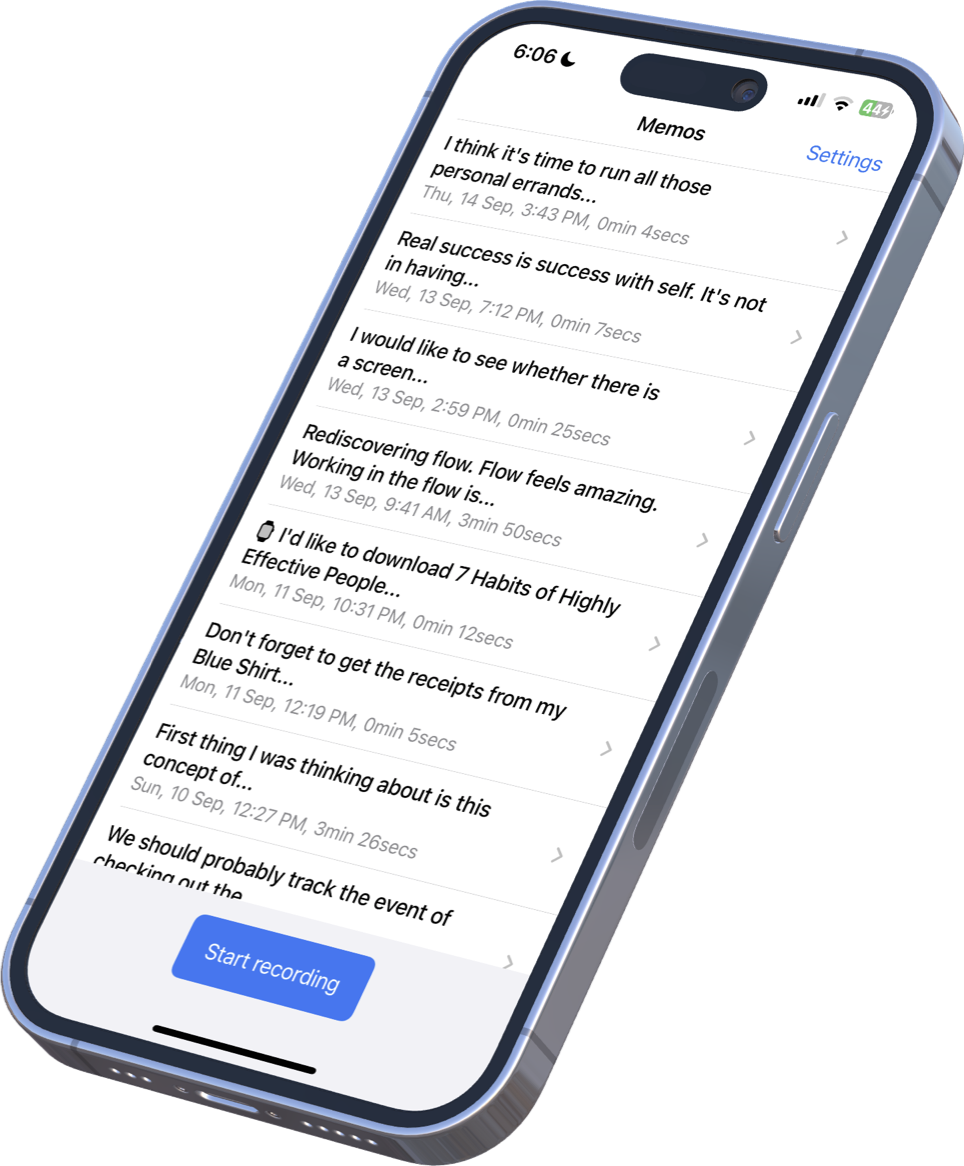
Whisper Memos takes a different approach. Instead of relying on Apple's on-device transcription, it uses cloud-based AI models that deliver significantly better accuracy-especially for non-English languages and accents.
How it works
- Open the app and tap record (or use a widget, Siri, or tap the back of your phone)
- Speak your thoughts
- Stop recording-transcription starts automatically
- Receive a formatted transcript in your email within minutes
Use cases
The automatic email delivery opens up use cases that built-in options can't handle:
- Reminders. Record "remind me to call the dentist tomorrow" and it lands in your inbox where you'll see it.
- Meeting notes. Record a meeting, get a summary and transcript emailed to you. Forward it to your team.
- Journaling. Speak your thoughts during a walk, receive a formatted journal entry later.
- Quick drafts. Voice-draft an email or document, then copy the transcript into your actual message.
Recording from Apple Watch
Sometimes you can't-or don't want to-pull out your phone. That's where Apple Watch recording becomes invaluable.
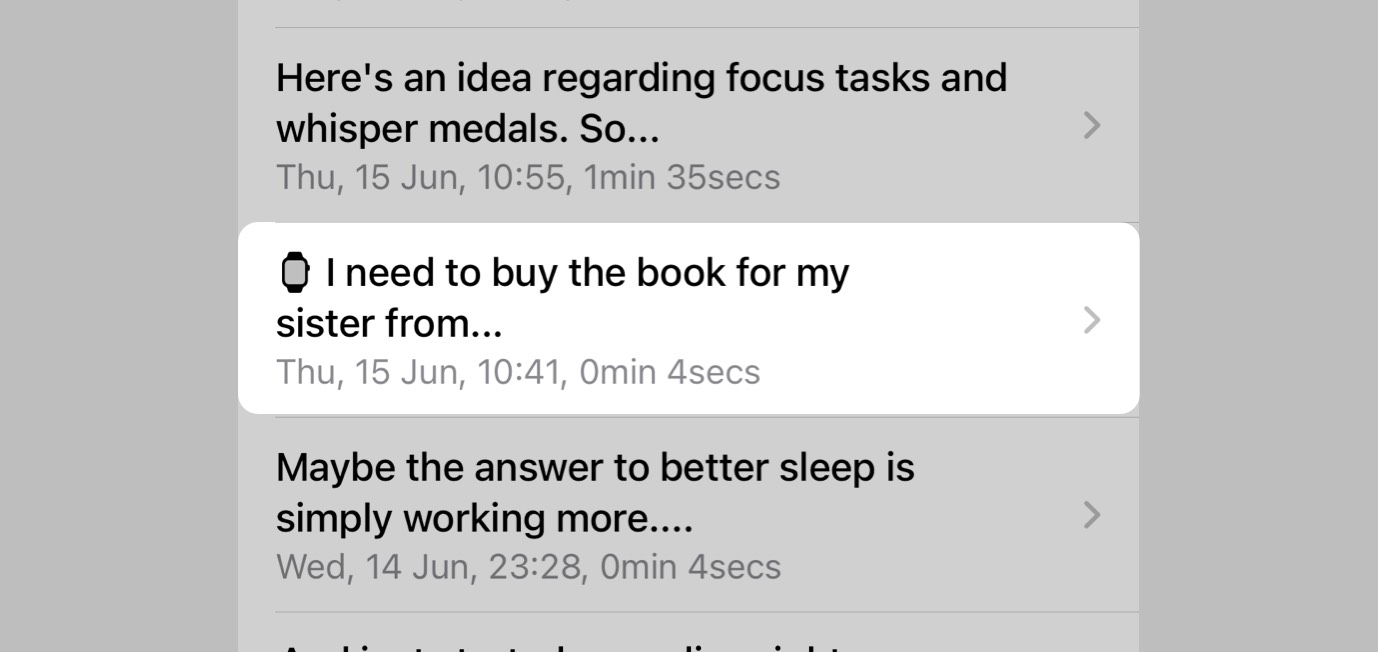
Whisper Memos works fully standalone on Apple Watch. Raise your wrist, tap the complication, and start talking. No phone required.
When this is useful
- During workouts. Capture an idea while running without breaking stride.
- In meetings. Discreetly start recording from your wrist without pulling out your phone.
- While driving. Safer than fumbling with your phone.
- When your phone isn't nearby. The watch works offline and syncs later.
The Apple Watch app has the same features as the iPhone app-your recordings get transcribed, summarized, and emailed just like any other memo.
See our complete Apple Watch transcription app guide for setup tips, offline recording details, and common use cases.
Importing Existing Recordings
Already have voice recordings you'd like to transcribe? Whisper Memos can import audio files from anywhere on your iPhone and process them with the same AI transcription.
Supported formats
- M4A - iPhone's default recording format
- MP3 - Universal audio format
- WAV - Uncompressed audio
- AAC, FLAC, OGG - And other common formats
How to import
There are several ways to get audio into Whisper Memos:
- Share sheet. From Voice Memos, Files, or any app-tap Share and select Whisper Memos.
- Copy and paste. Copy an audio file, open Whisper Memos, and it'll detect and offer to import it.
- File picker. Tap the + button in Whisper Memos to browse and select files from your device.
This is especially useful if you have old Voice Memos you'd like to transcribe properly, or audio files from interviews, lectures, or other sources.
Language & Accuracy
Whisper Memos uses two AI transcription engines: OpenAI Whisper and ElevenLabs Scribe. Both support dozens of languages and handle accents far better than Apple's built-in transcription.
- Multi-language support. Works with English, Spanish, French, German, Portuguese, Chinese, Japanese, Korean, and many more.
- Accent handling. The AI models are trained on diverse speech patterns, so they don't struggle with regional accents.
- Automatic language detection. No need to manually set your language-just speak and it figures it out.
If you've been frustrated by Apple's transcription mangling non-English recordings, this is the fix.
Getting Started
Need your transcript in another language? Follow our guide to translating voice memos on iPhone, including a video walkthrough and a custom prompt for automatic translation and email delivery.
Ready to try better voice to text on your iPhone? Here's how to get started:
- Download Whisper Memos from the App Store (free to start)
- Open the app and tap record
- Speak a test memo-maybe 30 seconds about your day
- Wait a minute or two for the transcript to arrive in your email
You'll immediately notice the difference in formatting and accuracy compared to built-in options. From there, try the Apple Watch app, set up custom summaries, or import some old recordings.