Agents
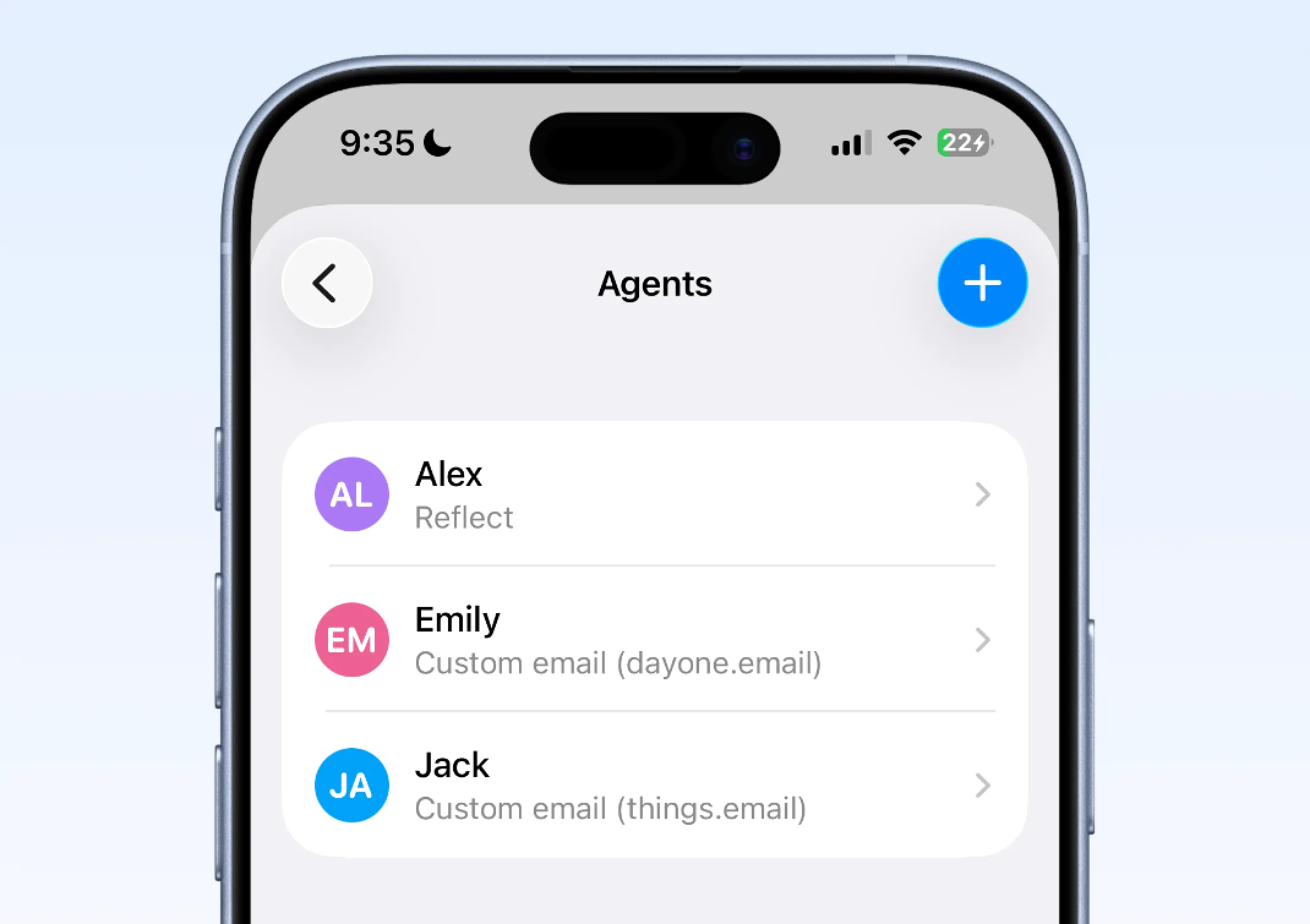
Agents let you create named automations inside Whisper Memos. Each agent has a name, a color, and a set of steps to run when that agent is selected.
Use agents when different memos should go to different places. One recording might belong in your inbox, another might create tasks in Things, and another might go to a coding workflow in Cursor.
You can trigger an agent in two ways:
- Say the agent’s name at the start of a memo
- Apply the agent after recording from the memo actions menu
How Agents Work
Section titled “How Agents Work”Create an agent in Settings → Agents, then start a memo with that agent’s name. For example:
“Hello Jack, today I need to take out the trash and clean up the bathroom.”
Whisper Memos detects the name at the beginning of the memo, selects that agent, and runs its configured steps automatically. This lets you choose the destination while you speak instead of sorting memos later.
Creating Your First Agent
Section titled “Creating Your First Agent”- Open Settings
- Tap Agents
- Tap the + button
- Give the agent a name and color
- Add one or more steps
- Save the agent
- Start a memo with that agent’s name, or assign it later from the memo menu
It usually works best to create separate agents for separate workflows, such as personal tasks, journaling, coding work, or team updates.
Available Steps
Section titled “Available Steps”Agents can combine multiple steps in one workflow.
| Step | What it does |
|---|---|
| Summary | Creates a shorter or differently formatted version of the memo first, using the default summary or one of your custom summaries |
| Default email | Sends the memo to the same inbox you already use for regular Whisper Memos delivery |
| Custom email | Sends the memo to any email address, including tools like Things or Day One |
| Assign label | Applies one of your memo labels automatically |
| Reflect | Saves the memo directly to your Reflect notes |
| Cursor | Sends the memo to Cursor as a coding task |
| Zapier | Triggers a Zapier automation and routes the memo into other apps |
| Webhook | Sends the memo transcript to one of your custom webhooks |
| Lock screen reminder | Pins the memo as a persistent notification |
Using a Summary Step
Section titled “Using a Summary Step”The Summary step runs before most text delivery steps.
You can choose:
- The default summary
- One of your custom summaries from Settings → Summaries
This is useful when the raw transcript is not the best format for the destination. For example, you can turn a spoken brain dump into a clean to-do list, meeting brief, or journal entry before sending it on.
Webhook steps are different: they load the saved memo transcript for delivery. If you need to send a summarized version to another tool, use an email, Reflect, or Zapier step that supports the summarized content.
Some steps also support to-do extraction, which solves a different problem. The Summary step rewrites the whole memo first, while to-do extraction pulls individual action items out for separate delivery.
Example Workflow: Send To-Dos to Things
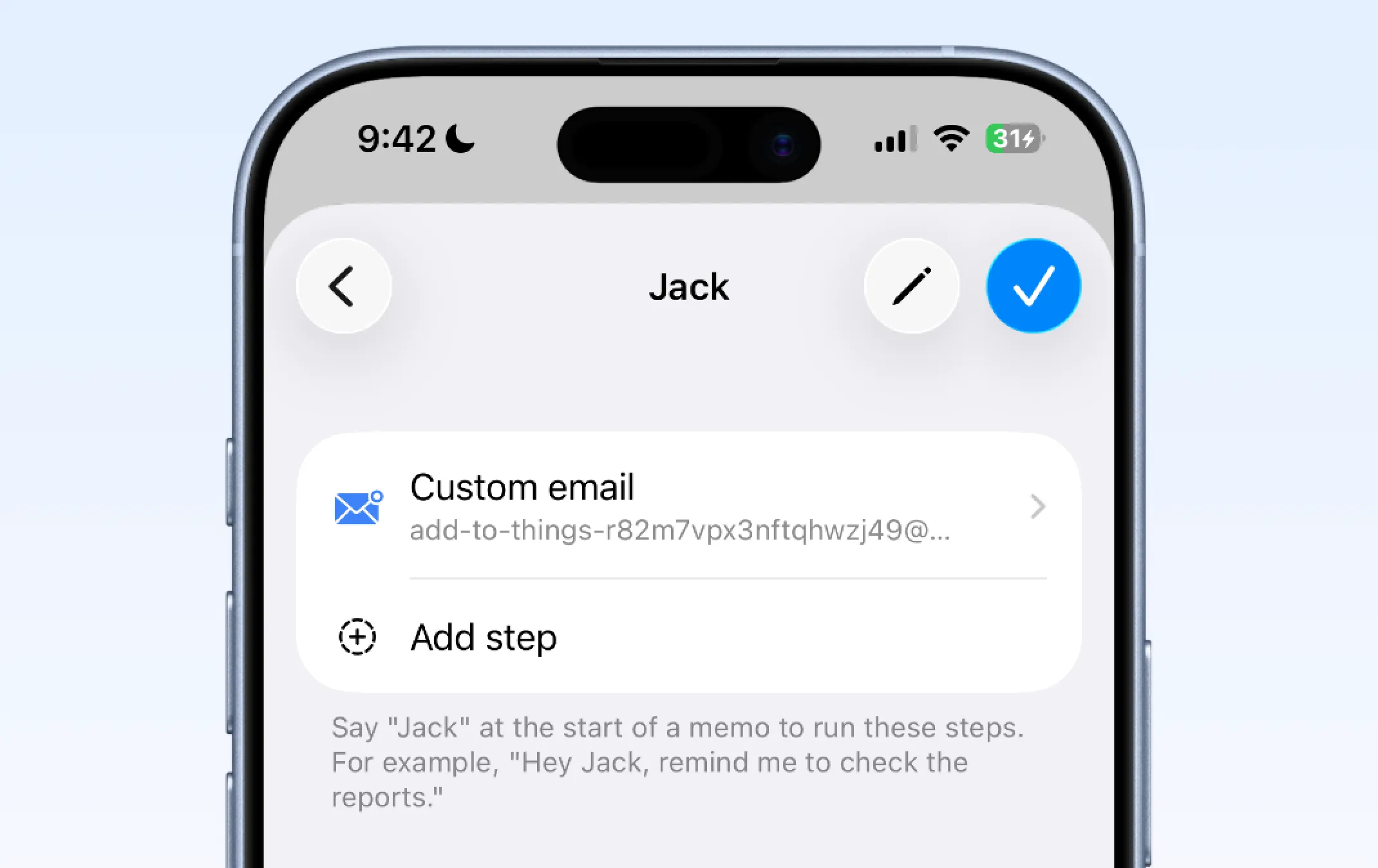
Section titled “Example Workflow: Send To-Dos to Things”One simple setup is an agent that sends spoken tasks to Things using a Things Mail Drop address.
- Create an agent named Jack
- Add a Custom email step
- Paste in your Things Mail Drop address
- Record a memo that starts with “Hello Jack…”
This gives you a quick way to route task-focused memos into Things without forwarding them manually.
Assigning an Agent Later
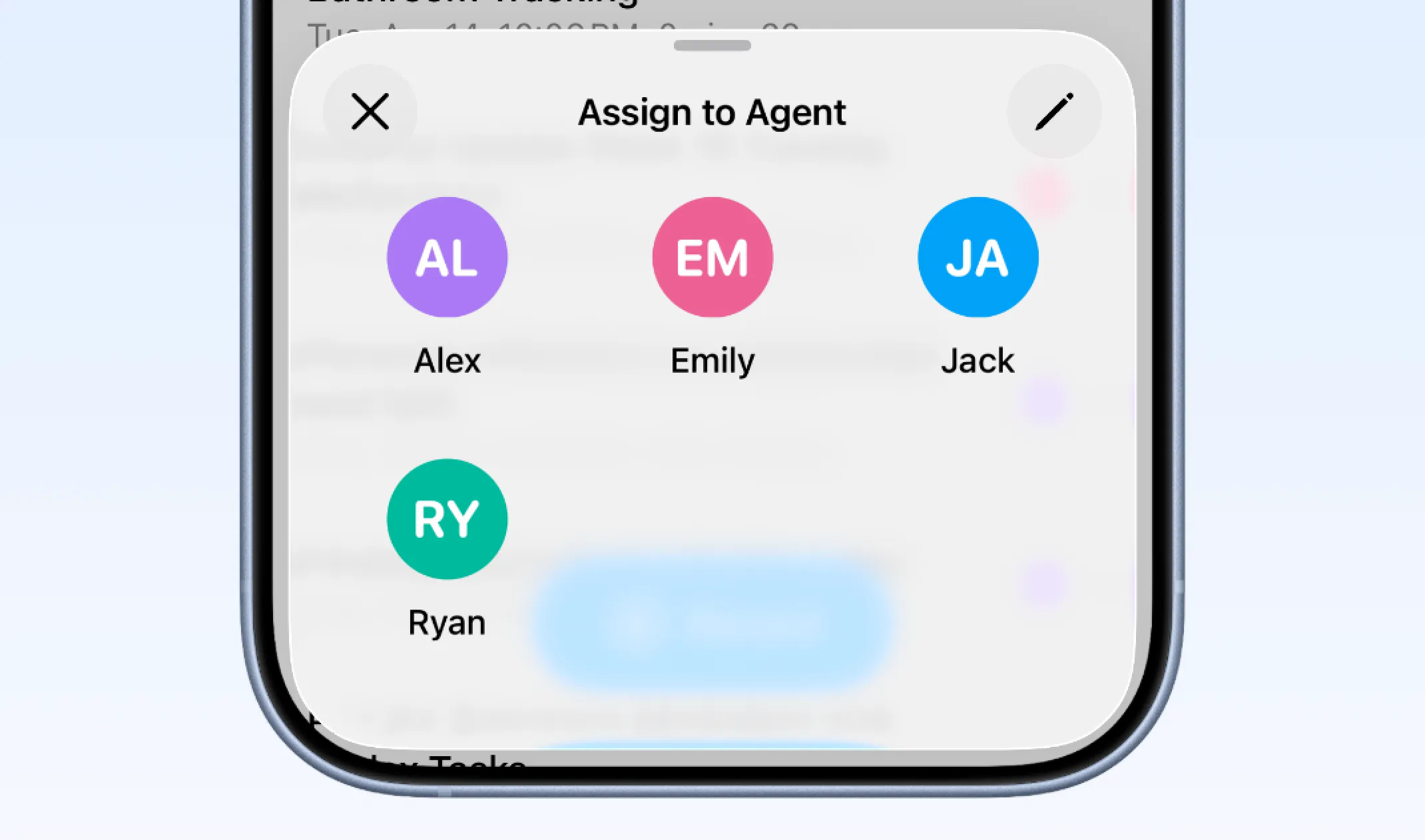
Section titled “Assigning an Agent Later”If you forget to say the agent’s name while recording, you can still apply it afterward.
- Find the memo in your list
- Long-press it
- Choose Assign to agent
- Select the agent you want to run
Whisper Memos will then run that agent on the existing memo.
- Put the agent name at the very start of the memo for the most reliable routing
- Use short, distinct names that are easy to say out loud
- Create one agent per workflow instead of one large catch-all agent
- Use a Summary step when the destination works better with a cleaner version than the full transcript
- Use an Assign label step when an agent’s memos should be grouped automatically
- If a workflow needs multiple actions, add multiple steps to the same agent
- If you want coding tasks to go to Cursor, see Cursor Cloud Agents
- If you want to send memos to a custom endpoint, see Webhooks
- If you want to reuse a custom format inside an agent, see Custom Summaries