Webhooks
Webhooks let Whisper Memos send memo data to your own tools automatically. Use them when you want new transcripts to reach a custom API, internal service, automation platform, or database.
Whisper Memos sends webhook calls as HTTP POST requests.
When to use webhooks
Section titled “When to use webhooks”Use webhooks when you want Whisper Memos to call a URL after a memo is processed. Common uses include:
- Saving transcripts to a private backend
- Triggering an internal automation
- Sending memo data into a custom dashboard
- Passing selected memos to a tool that is not built into Whisper Memos
If you only need an existing no-code integration, Zapier may be simpler. If you control the destination URL or need a custom payload, use webhooks.
Create a webhook
Section titled “Create a webhook”- Open Settings
- Tap Integrations
- Tap Webhooks
- Tap Add webhook
- Add a name and URL
- Choose where the webhook should apply
- Choose the request format
- Tap Save
Webhook URLs must use http or https.
Choose where it runs
Section titled “Choose where it runs”In the webhook editor, use Apply to to choose when the webhook runs.
| Option | What it does |
|---|---|
| All memos | Sends regular new memos to the webhook |
| Specific agent | Sends only memos handled by the selected agent |
Use All memos for broad logging or archiving. Use Specific agent when only one workflow should call your endpoint.
If a memo is handled by an agent, normal all-memo integrations are skipped. Add the webhook as a step on that agent when agent-routed memos should also be sent to your endpoint.
Request format
Section titled “Request format”Webhooks support two content types:
| Content type | Body |
|---|---|
| JSON | A JSON object containing enabled fields |
| Plain text | The transcript text |
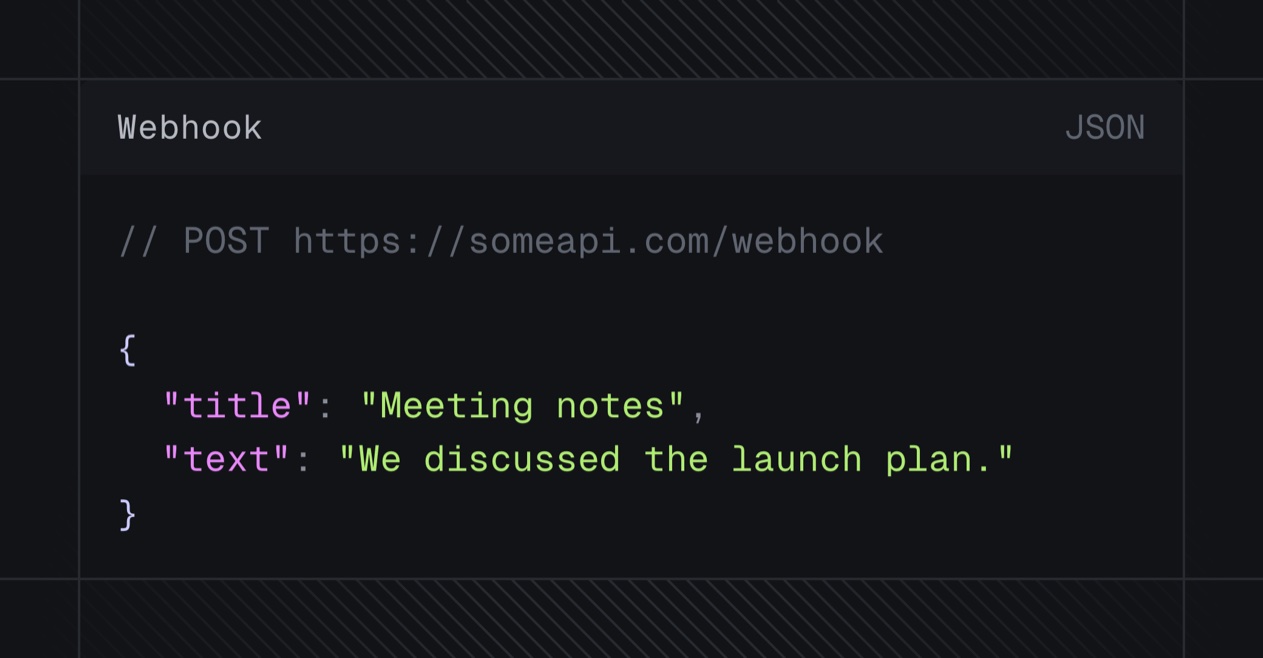
For JSON requests, you can choose whether to include the memo title, transcript, or both. You can also rename those JSON keys and add custom key-value fields for static values such as instructions or source metadata. The default JSON body looks like this:
{ "title": "Meeting notes", "transcript": "We discussed the launch plan."}Whisper Memos shows an Example request in the webhook editor so you can confirm the body before saving.
Use Add custom field in the JSON fields section to include extra values with every request. For example, an instructions field can tell the receiving service how to process the memo.
Screenshot request: Webhook example request section showing the generated request body.
When a webhook runs as an agent step, it receives the saved memo transcript. A Summary step in the same agent can affect later email or Reflect steps, but webhook delivery still loads the memo transcript from Whisper Memos.
Headers
Section titled “Headers”Use Headers to add values your endpoint requires, such as:
Authorization: Bearer your_tokenX-Source: Whisper MemosHeader names and values are sent with every call for that webhook.
Recent calls
Section titled “Recent calls”After a webhook is saved, the editor shows Recent calls. Open a recent call to inspect details such as:
- HTTP status code, when available
- Method
- Content type
- URL
- Created and completed time
- Request body
- Error message, when delivery fails
Use this when testing a new endpoint or debugging authentication and payload issues.
- Test with a temporary endpoint before connecting a production system
- Start with JSON unless your destination specifically expects plain text
- Keep authentication tokens in request headers instead of the URL
- Use an agent-specific webhook when only certain memos should leave Whisper Memos