Location
Some thoughts are tied to where they happened: an idea on a walk, notes from a client visit, or a recommendation from a café. Whisper Memos can optionally remember that context by attaching the place where a recording started.
Location is off until you turn it on.
Turn on location
Section titled “Turn on location”- Open Settings in Whisper Memos
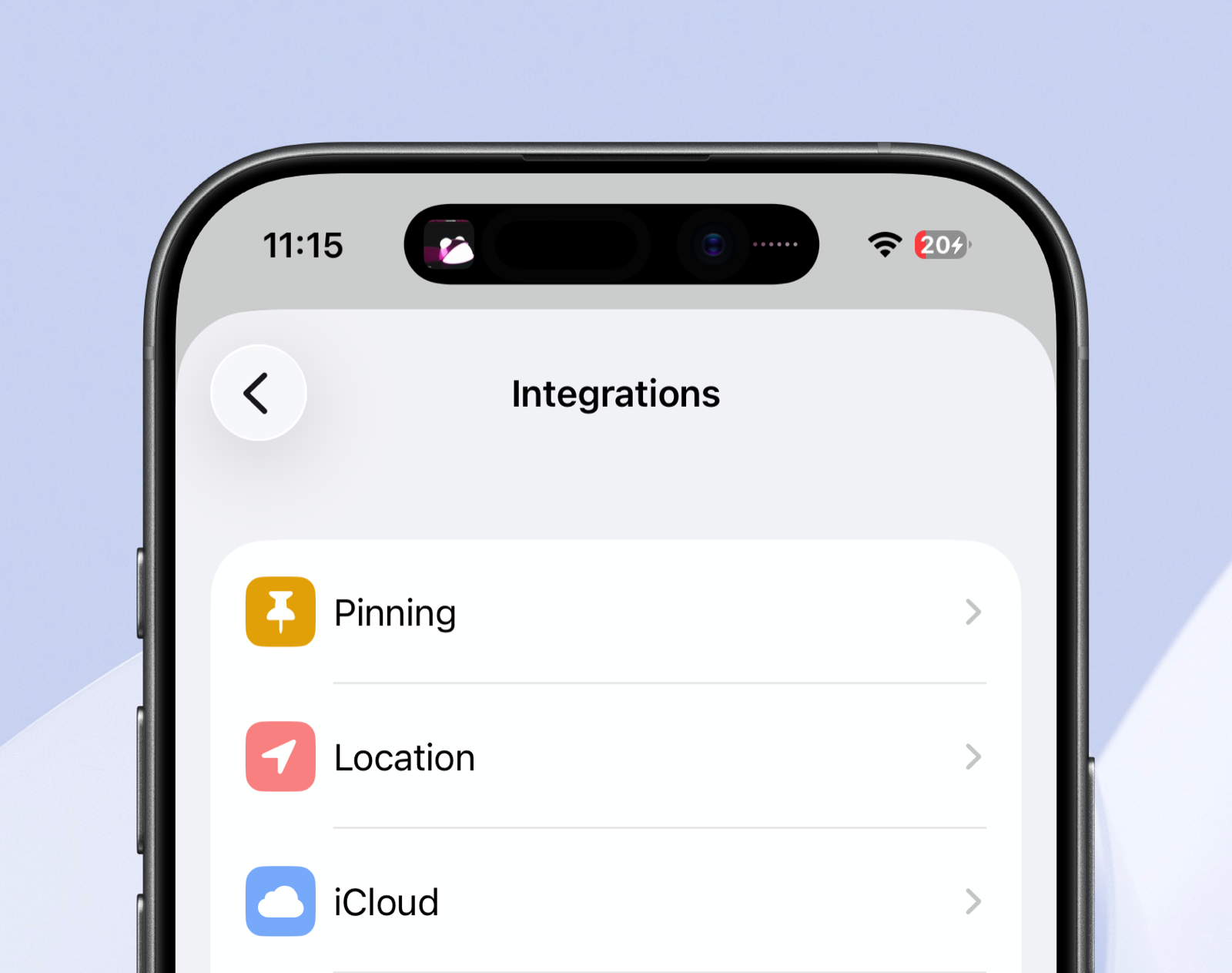
- Tap Integrations → Location
- Turn on Attach location to memos
- Allow location access when iOS asks
New recordings made on that iPhone will include their location automatically. Existing memos are not changed.
Whisper Memos takes a single location reading when a recording starts. It only uses location while the app is in use, and it does not track you in the background.
See where a memo began
Section titled “See where a memo began”Memos with a location show a location marker in the memo list and alongside the memo details. Tap the marker to see the place on a map, then tap Open in Maps for directions or more context.
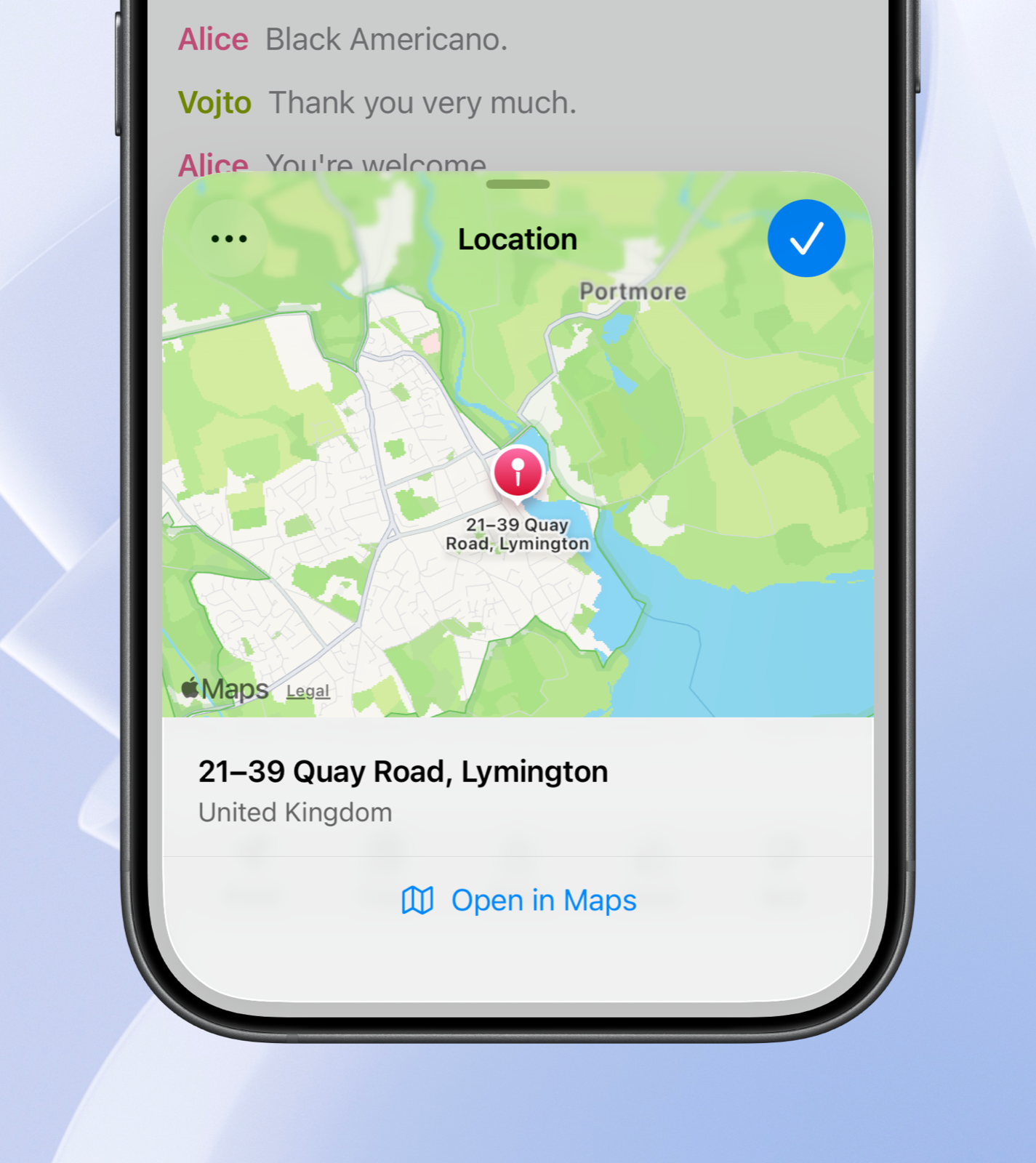
Transcript emails also include the location, with a map link above the transcript.
Remove a location
Section titled “Remove a location”To remove the location from a single memo, open its map, tap the menu button, and choose Remove Location.
To stop attaching locations to new recordings, turn off Attach location to memos in Settings → Integrations → Location.
Where location is shared
Section titled “Where location is shared”Location is only visible to you in the app and in your transcript emails. It is not included in:
- Public shared links
- Summary emails
- Integrations such as webhooks