Meeting mode
Meeting mode turns a conversation into a transcript organized by speaker. Use it for meetings, interviews, classes, or any recording where you want to see who said what.
Meeting mode is available on iPhone and Apple Watch.
Record a meeting on iPhone
Section titled “Record a meeting on iPhone”- Start a recording in Whisper Memos
- Turn on Meeting at the bottom of the recording screen
- Record the conversation, then tap Stop
- Choose how many people may speak, or tap Skip
- Confirm your choice and wait for the memo to finish processing
The number you choose is a maximum, not an exact count. Giving Whisper Memos a reasonable limit can help it separate the speakers. You can choose between 2 and 6 people, or skip the question when you are unsure.
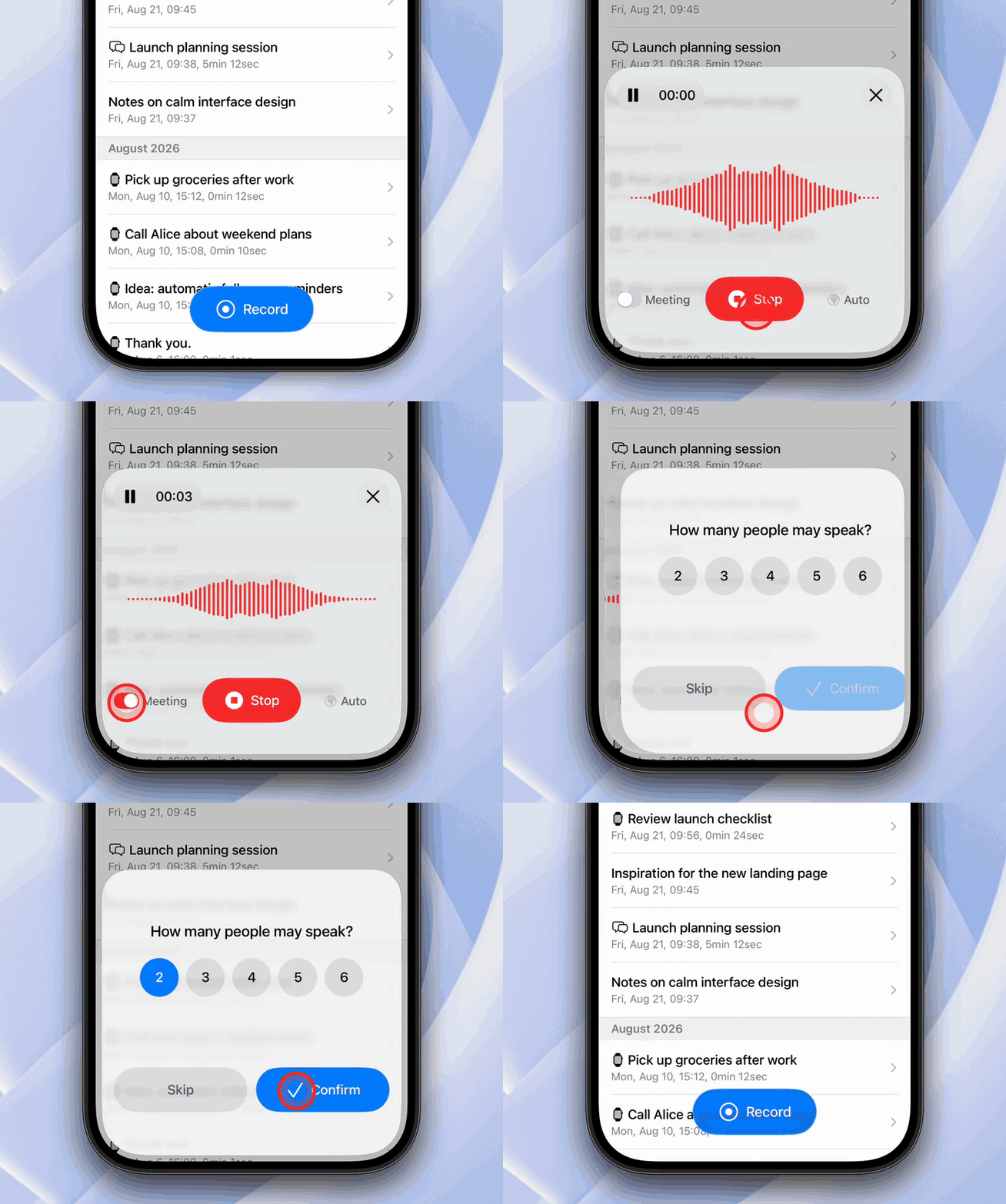
Meeting mode turns off after each recording, so turn it on whenever you start a new conversation.
Name the speakers
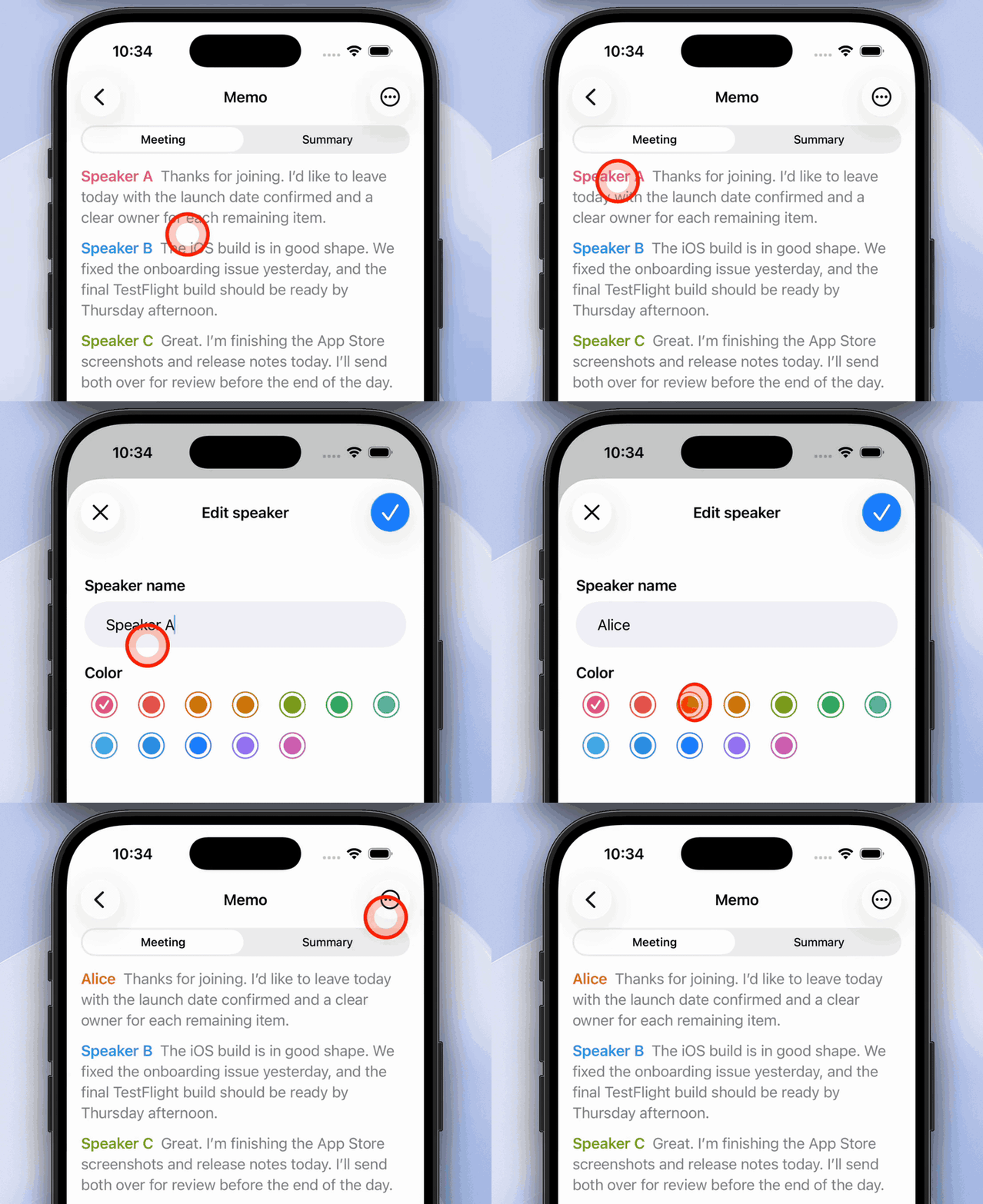
Section titled “Name the speakers”The finished transcript initially uses labels such as Speaker 1 and Speaker 2. You can replace each label with a name and color:
- Open the finished meeting memo
- Tap a speaker label in the transcript
- Enter the speaker’s name
- Choose a color
- Tap Done
The name and color apply throughout that memo. To return to the original label, tap it again and choose Reset to default.
Where speaker names appear
Section titled “Where speaker names appear”Once you rename a speaker, the new name is used everywhere the transcript goes:
- Shared links: The public page shows each speaker’s name and color
- Copy and share text: Copied or shared transcripts use the new names
- Export: Exported transcripts include the new names
- iCloud: If iCloud transcript sync is on, the transcript file in iCloud Drive is updated with the new names
- Summaries and integrations: Summaries and webhooks see the renamed transcript
Renaming a speaker doesn’t replace what’s on your clipboard.
Record a meeting on Apple Watch
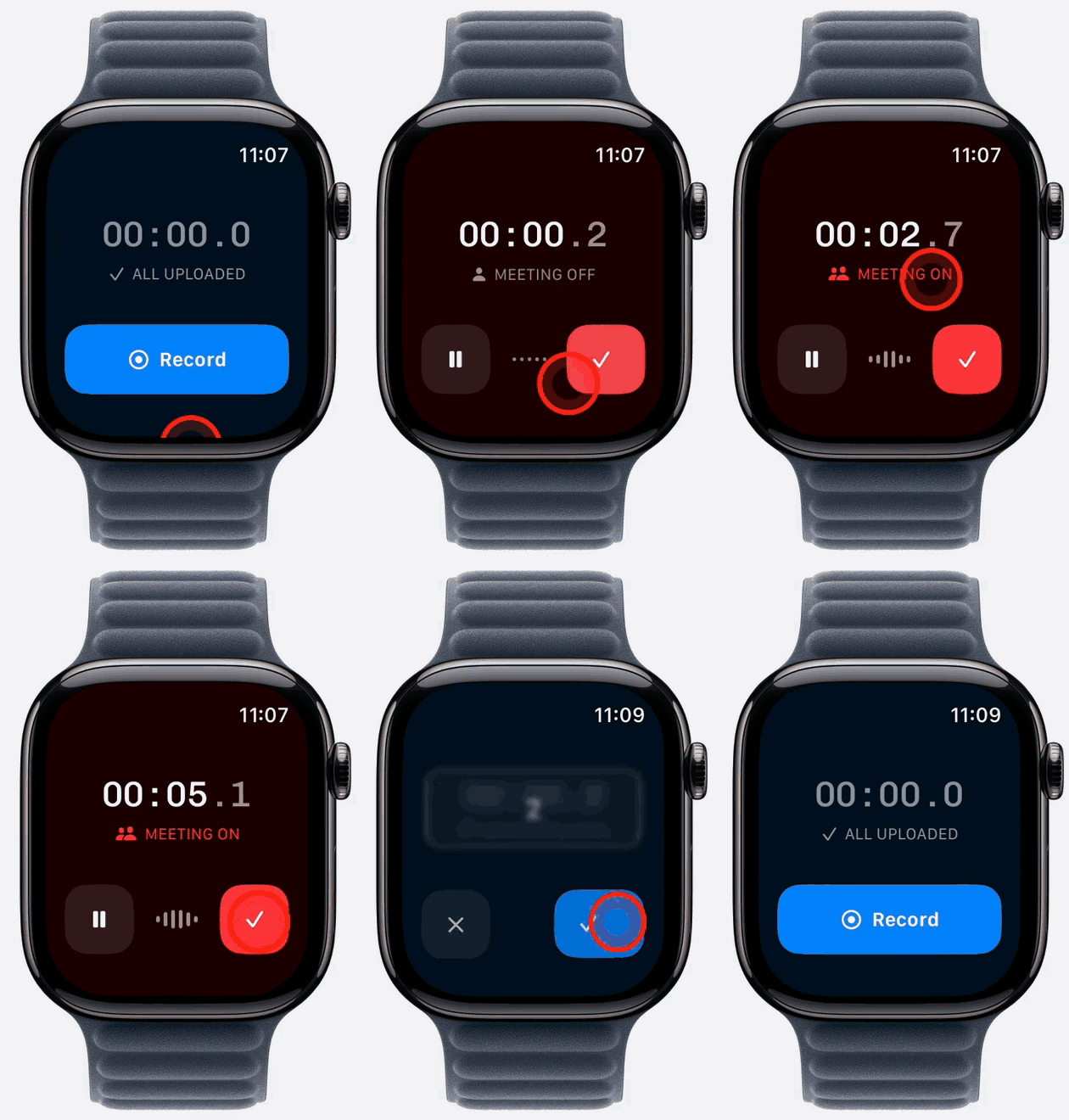
Section titled “Record a meeting on Apple Watch”- Start a recording in the Whisper Memos Watch app
- Tap Meeting off while recording to change it to Meeting on
- Tap the checkmark to stop recording
- Use the Digital Crown to choose the maximum number of speakers
- Tap the blue checkmark to confirm, or the × button to skip the count
The Watch shows upload progress after the recording. You can open the finished meeting and name its speakers from your iPhone.
Reprocess an existing memo as a meeting
Section titled “Reprocess an existing memo as a meeting”If you recorded a conversation without Meeting mode, you can try speaker separation afterward:
- Find the finished memo in your memo list
- Long-press the memo
- Choose Reprocess as meeting
- Select the maximum number of speakers, or tap Skip
Whisper Memos processes the recording again and replaces its transcript with the new result.
Reprocessing separates the speakers from scratch, so any speaker names and colors you set earlier are reset to Speaker 1, Speaker 2, and so on. Name the speakers again after the new transcript is ready.
Tips for clearer speaker separation
Section titled “Tips for clearer speaker separation”- Place the iPhone or Apple Watch where it can hear everyone clearly
- Reduce background noise when possible
- Avoid having several people talk at the same time
- Choose the smallest reasonable maximum speaker count
- Rename speakers after processing to make long conversations easier to scan