
How to translate voice memos on iPhone

Vojtech Rinik
Founder of Whisper Memos
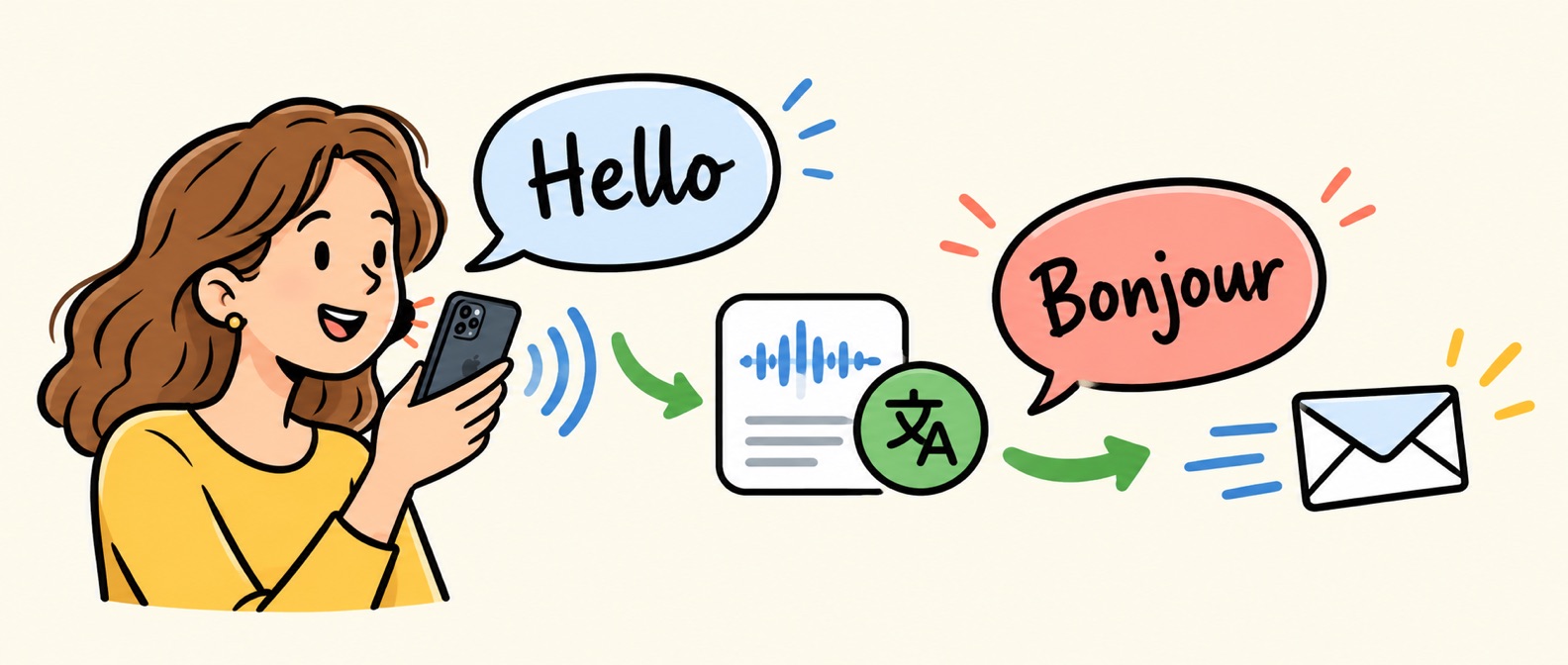
You can translate a voice memo on iPhone by recording it in Whisper Memos and creating a custom summary with a translation prompt. The app transcribes your recording, then uses that prompt to turn the transcript into another language. Enable Auto-email to have translations of new recordings delivered to your inbox.
I'm Vojtech, the founder of Whisper Memos. In the video below, I record a short memo in English and translate it into French. I'll walk you through the same setup here, including the small prompt detail that helps you get a full translation rather than a summary.
Watch: automatically translate a voice memo into French
Watch the tutorial on YouTube if you'd prefer to open it there.
Transcription and translation are different steps
By default, Whisper Memos writes down what you said in the language you spoke. An English recording produces an English transcript. Translation is a separate step that creates a text version in your chosen language, while keeping the original transcript available.
This guide produces translated text. It doesn't create a dubbed recording or speak the translation aloud. If you're looking for the recording and transcription basics, start with our voice-to-text guide for iPhone.
How to set up automatic voice memo translation
1. Record a short test memo
Open Whisper Memos and record a few sentences in your usual language. In my demo, I say: “Hello, world. I'm recording a new memo. This is using English language, and in a moment, I'll try to translate it into French.”
Stop recording and wait for the transcript. Read it once before moving on: the translation uses this text, so a misheard name or number can carry through into the translated version.
2. Open Settings → Summaries
Go to Settings, then Summaries. In the video, I turn off Enable default summary because I'm only testing translation. That part is optional. You can keep the default summary enabled if you also want a shorter overview of your memo.
3. Create a custom summary for your target language
Tap the + button to add a custom summary. Give it a clear title, such as Translate to French. That name will appear as a tab when you open a memo.
The feature is called Summaries, but your custom prompt can ask the AI to translate the text instead. You don't need to paste each new transcript into a separate translation tool.
4. Paste a translation prompt
For an English-to-French translation, copy this into the Prompt field:
Translate the following transcript into French. Do not summarize. Preserve the full meaning and details of the original text. Return only the translated text.“Do not summarize” is the key instruction. Because this runs through the Summaries feature, I make it explicit that I want a translation of the whole transcript. The last sentence asks for the translation without an introductory explanation from the AI.
5. Enable Auto-email and save
Leave the custom summary Enabled. Turn on Auto-email if you want the translated result emailed to you for new recordings, then tap Save. Auto-email is optional if you only want to read translations inside the app.
6. Open the translation tab
Open your test memo and select the Translate to French tab at the top. Allow time for the translation to finish. Your original transcript stays available in its own tab.
Next, record a second short memo to check the workflow. In the video, I record another English message and open its translation tab to see the French version. If you enabled Auto-email, also check your inbox for the translated result.
Translate into another language
Replace “French” in the prompt with the language you want. For example, to translate a non-English voice memo into English, you can use:
Translate the following transcript into English. Do not summarize. Preserve the full meaning and details of the original text. Return only the translated text.You can also specify a language variety, such as European Portuguese, or ask for a formal tone when preparing a message for work. Start with the simple prompt and check the result before adding more instructions. Quality can vary by language and by how clearly the original speech was transcribed.
When this workflow is useful
- Drafting messages in another language. Speak your draft in your own language, then review and copy the translated text into an email or message.
- Sharing notes with colleagues. Record a recap and get a translated version ready to review before forwarding it.
- Practicing a language. Compare the original transcript with the translation to see how a phrase could be expressed in another language.
Common questions
Can I translate an existing recording from Apple's Voice Memos app?
Yes. Share the recording from Voice Memos to Whisper Memos, or import it through the file picker. Once it's transcribed, open your custom translation tab. The audio import guide explains the available import methods.
Why did I get a short summary instead of a full translation?
Check that your custom prompt explicitly says “Do not summarize” and asks to preserve the full meaning and details. Also make sure you're viewing your translation tab rather than the default summary.
Can I translate into more than one language?
Create a separate custom summary for each target language, with its own title and prompt. Each appears as a separate tab. You can choose which ones have Auto-email enabled.
Will it work offline?
Transcription and AI translation need an internet connection. If you record while offline, wait until your memo has uploaded and finished processing before checking the translation.
How should I check the translation?
Compare names, dates, numbers, and any specialist terms with the original transcript. AI can make mistakes, and a fluent sentence isn't always an accurate translation. For text where exact wording matters, have someone who knows both languages review it before you use it.
Try it with your next voice memo
Download Whisper Memos, which comes with a generous free trial, and start with a short recording. Create one translation prompt, check the result, and enable Auto-email if you'd like new translations delivered to your inbox.
For more ways to format your recordings, read the custom summaries guide. You can use the same feature for action items, meeting notes, and other formats alongside your translations.